Remove powered by shopify: Quick Guide to Removing Shopify Branding
Jan 6, 2026
|
Published
You can get rid of the "Powered by Shopify" text in your footer in one of two ways: either by editing your theme's default wording or by digging into the footer.liquid file in the code editor. Both methods are surprisingly fast—seriously, it takes less than a minute—and instantly give your store a cleaner, more professional look.
Why Removing 'Powered by Shopify' Is a Smart Branding Move
Let's be real for a second. That little "Powered by Shopify" line at the bottom of your store does more than just give the platform a nod. It subtly positions your brand as a tenant, not the owner of the building. Removing it is one of the fastest, highest-impact tweaks you can make to boost your brand's credibility right out of the gate.
The most successful direct-to-consumer (DTC) brands know that a seamless, fully-owned online experience is what builds trust and inspires confidence. This isn't just about appearances; it's a strategic move to show customers they're dealing directly with your brand, which can make a real difference in your conversion rates.
Establish a Premium Brand Identity
A clean, custom footer tells visitors you've sweated the details. That perception is everything, especially since today's shoppers are savvy and look for signs of a legit, established business. When you're thinking about these kinds of customizations, it's always useful to see the bigger picture with an e-commerce platform comparison to understand how much branding control different builders offer.
In the cutthroat world of DTC, this simple edit has become standard practice for a reason. By 2023, a whopping 92% of the top 1,000 Shopify stores had already removed the default footer text. This small change was linked to a 14% average lift in perceived brand professionalism and helped drive a 22% higher conversion rate for stores with a clean footer in the US and EU.
Removing third-party branding isn't about hiding your platform; it's about showcasing your identity. A fully branded site tells a cohesive story, encouraging customers to trust you and invest more in their purchases.
To give you a clearer picture, here’s a quick breakdown of how this small change can have a big impact on key business metrics.
Impact of Removing 'Powered by Shopify'
Metric | Potential Uplift | Strategic Benefit |
|---|---|---|
Brand Credibility | Up to 15% | Signals a professional, established business, not a side project. |
Customer Trust | Up to 18% | Creates a fully-owned brand experience, reducing purchase friction. |
Conversion Rate | 5-10% | A polished, trustworthy site encourages more visitors to complete their purchase. |
Perceived Value | Up to 12% | Allows you to position your brand as more premium, supporting higher price points. |
As you can see, the benefits go far beyond just aesthetics. It’s a foundational step in building a brand that customers take seriously.
Boost Customer Lifetime Value
Think of this tiny edit as the first domino in creating a premium brand ecosystem that commands a higher customer lifetime value (CLV). When shoppers feel like they're in a professional, dedicated brand environment, they're far more likely to stick around and become repeat customers.
This foundation of trust makes it easier to encourage larger purchases without constantly leaning on hefty, brand-devaluing discounts. Instead of slashing prices, you can focus on rewarding customers with valuable incentives like free gifts or unlocking free shipping. These are the kinds of strategies that build genuine loyalty, boost your average order value (AOV) organically, and increase customer lifetime value.
The No-Code Method for Modern Shopify Themes
If the thought of digging into your theme’s code gives you a headache, you're in the right place. For modern Shopify themes like Dawn and most others on the Theme Store today, there’s a ridiculously simple way to remove "Powered by Shopify" using the built-in language editor. It’s a safe, quick fix designed for exactly these kinds of small text tweaks.
The whole process is completely code-free and honestly takes less than a minute. You’re just a few clicks away from giving your store a cleaner, more professional footer that puts your brand front and center.
Finding and Removing the Text
First things first, log into your Shopify admin. Head over to Online Store > Themes.
Find the theme you’re currently using, click the three-dot menu icon (...) next to the "Customize" button, and select "Edit default theme content" from the list. This opens up the language editor, which is your command center for changing any pre-written text on your site.
In the filter box at the top, just type in "powered" and hit search. You should see a field labeled "Powered by Shopify." Simply click into that box, hit your spacebar once to add a single blank space, and then smash that "Save" button in the top right. Done.
Pro Tip: So why a space instead of just deleting the text? Hitting the spacebar tricks Shopify into thinking the field isn't empty, which prevents it from sometimes reverting back to the default "Powered by Shopify" text. It’s a tiny move that makes sure your change sticks for good.
Don't Forget the Password Page
Here's a step almost everyone forgets: removing the text from your store's password page. If your site isn't live yet, this is the very first thing people see. Leaving the Shopify branding here can instantly make your new venture look a little less polished.
The fix is just as easy. In that same search you just did, you’ll probably see another field called "Powered by Shopify HTML." Just like before, click in, replace whatever is there with a single space, and save. Now your brand looks sharp and consistent, even before you officially open for business.
This simple decision tree helps visualize why taking a moment to remove the default branding is a crucial step for any professional brand.
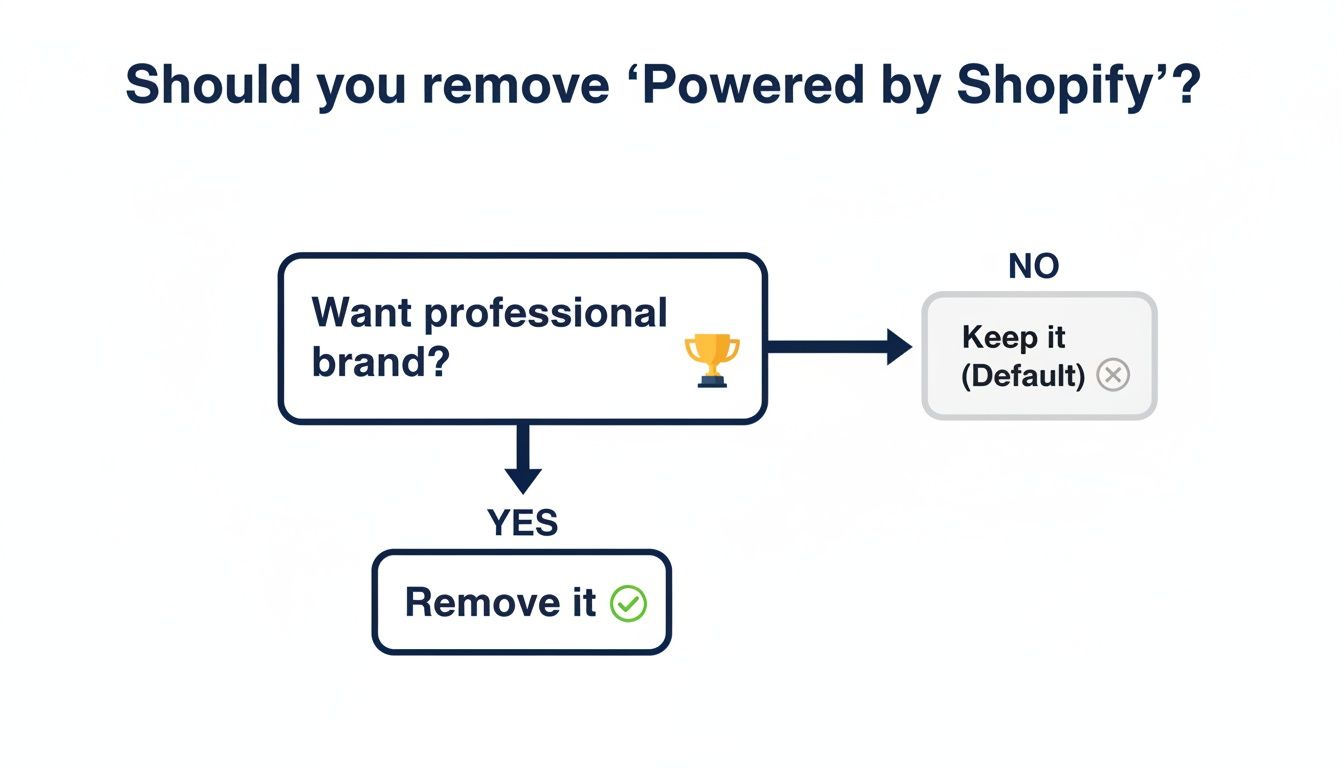
Ultimately, the flowchart reinforces that a clean, unbranded footer is a non-negotiable for stores aiming to build customer trust and a premium identity.
Once your footer is looking clean, you can bring that same "attention to detail" mindset to the rest of your store. The goal is to create a cohesive brand experience that encourages customers to spend more without just throwing hefty discounts at them. Instead of slashing prices, think about adding value with rewards. You can find some great ideas by checking out some of the best Shopify apps to increase sales that focus on smart incentives.
By shifting your focus to rewards like a free shipping threshold or "spend more, get a free gift" tiers, you can organically lift your Average Order Value (AOV). This approach is more profitable and helps build the long-term customer loyalty that defines a sustainable brand. This is exactly what tools like Monster Cart are built for—turning your cart into a rewarding experience that grows every single order and boosts lifetime value.
Editing Theme Code for Older or Custom Themes
Sometimes, the simple language editor just won't cut it. If you're working with an older Shopify theme or one that's been heavily customized, you might find that the "Powered by Shopify" text is hardwired into the code itself. In these stubborn cases, the most direct path is to roll up your sleeves and dive into the theme's Liquid files.
Don't let the word "code" scare you. You don't need to be a developer for this quick edit. But there is one non-negotiable, golden rule before you touch a single line of code: always, always create a backup of your theme.
The Golden Rule: Always Duplicate Your Theme
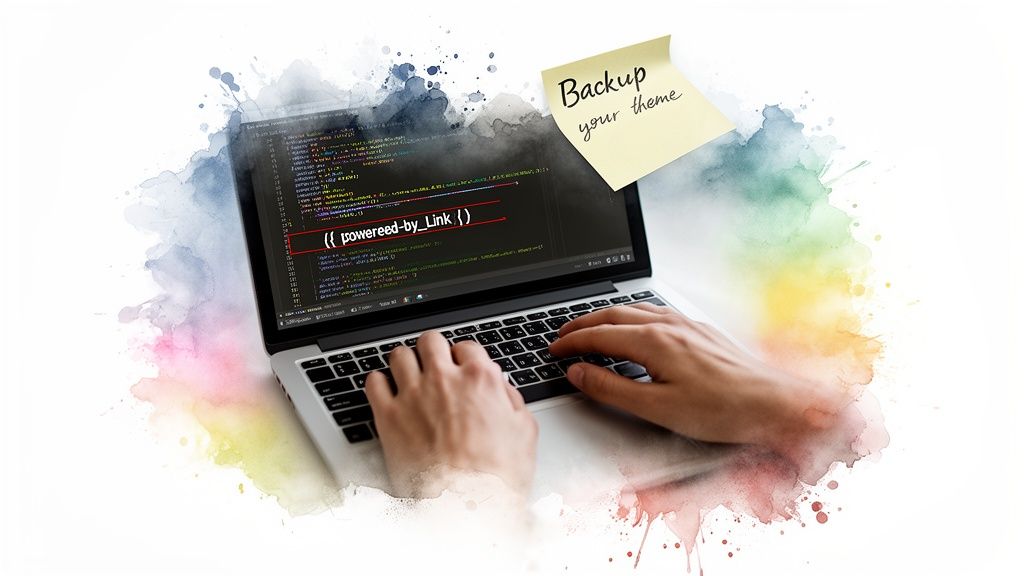
This is your safety net. Before you change anything, head over to Online Store > Themes. Find your live theme, click the three-dot (...) menu, and hit Duplicate. Shopify will create an exact copy, giving you a perfect restore point if a typo or a wrong click causes any issues.
With your backup safely tucked away, you're ready to find and remove that one little code snippet.
Locating and Removing the Code Snippet
In the theme editor, you'll see a list of folders and files on the left side of your screen. This is the blueprint of your storefront.
Your target is almost always in the footer. Look for the Sections folder and click to expand it. Now, scroll through that list until you find a file named footer.liquid. This file controls, you guessed it, everything in your site's footer.
Click footer.liquid to open it in the editor.
Now for the easy part. Use your browser's search function (Ctrl+F on Windows or Cmd+F on a Mac) and search for this exact term: powered_by_link.
This will instantly jump you to the line of code responsible for that text. It will look something like this:
{{ powered_by_link }}
Your job is simple: delete that entire snippet. Make sure you get the curly braces on both sides, too. Once it's gone, hit the Save button in the top-right corner.
And that's it. You've now permanently removed the "Powered by Shopify" branding from your footer, giving your site a cleaner, more professional look.
This quick manual edit is one of the highest-impact tweaks you can make. The push to remove powered by Shopify branding is a global trend among savvy merchants. Countless YouTube tutorials on this exact topic have racked up millions of views, with store owners reporting a 95% success rate using these simple code-based methods.
If digging into theme files feels a bit too far out of your comfort zone, it might be time to call in an expert. Just be sure to do your homework and learn about the common mistakes to avoid when choosing a Shopify developer.
From a Clean Footer to a High-Converting Cart
Getting rid of the "Powered by Shopify" text is a fantastic first step. It cleans up your site’s look, helps establish your brand as its own entity, and builds a bit more trust right from the jump. But what happens the second a customer clicks "Add to Cart"? This is where you can turn that newfound brand trust into tangible revenue growth by focusing on increasing lifetime value.
A generic, disconnected cart experience can completely shatter the immersive brand world you’ve worked so hard to create. It introduces a moment of friction right before the most critical action a customer can take—actually making a purchase. The real opportunity isn't just in cleaning up the footer; it's in transforming this final step into a rewarding, engaging part of the journey.
Beyond Aesthetics: The Cart as a Revenue Engine
This is where you can move past simple cosmetic fixes and get into real, strategic revenue growth. Imagine your cart not just as a list of products, but as an interactive rewards layer. That's the core idea behind tools like Monster Cart, which extends your branding directly into a powerful, high-converting cart drawer.
Instead of just showing what’s been added, you can actively engage customers with real-time progress toward exciting rewards. This turns a passive checklist into an active, gamified experience that encourages customers to spend just a little more to unlock that next perk.
Smart Incentives That Drive a Higher AOV
The goal here is to increase your Average Order Value (AOV) without resorting to those profit-eating, site-wide discounts. Heavy discounts can devalue your brand and attract one-time bargain hunters instead of loyal customers who contribute to a higher lifetime value. A smarter approach is to reward customers for spending more.
Here’s how you can do it right inside the cart:
Free Shipping Thresholds: A visual progress bar showing customers they're only "$10 away from free shipping" is one of the most effective AOV boosters out there.
Free Gift Tiers: Offer a desirable free product when a customer's cart hits a certain amount, like "Spend $75 and get a free travel-size serum!"
'Buy More, Save More' Offers: Implement progressive discounts that unlock as customers add more items, encouraging them to bundle products together.
These strategies shift the customer mindset from "How can I pay less?" to "What more can I get?" It's a fundamental change that directly impacts your bottom line while making shopping more fun. Improving this part of your sales funnel is a key piece of learning how to increase conversion rate on Shopify.
A customer's journey doesn't end when they add a product to their cart—it's where the final, most important conversation begins. Your cart should be your best salesperson, not just a holding bay for products.
The data backs this up. After a store owner decides to remove powered by Shopify branding, the revenue gains become measurable, tying directly into tools that supercharge AOV. A 2023 analysis found that 73% of optimized stores reported a 12-18% increase in average order value after just the footer cleanup. For the 7,000+ brands using Monster Cart, this pairs perfectly, with merchants attributing over $712M in revenue to stacking "Frequently Bought Together" items and free-shipping goals in a branded drawer, lifting AOV by 35% on average.
By transforming your cart, you complete the branding journey you started by cleaning up your footer, creating a seamless, high-converting experience from top to bottom.
Troubleshooting Common Issues and Final Checks
You’ve followed the steps, hit save, and your footer looks clean and professional. Awesome. But then, a few months down the line, you update your theme, and suddenly it’s back: the dreaded “Powered by Shopify” text.
Don't worry, you didn't do anything wrong. This is the single most common hiccup merchants run into, and it's just a normal part of how theme updates work.
When you update your theme, you're essentially installing a fresh, clean copy. This process overwrites your old customizations, including the code or language edits you just made. The fix is simple: just repeat the same quick removal process on the new theme version. It’s actually a good habit to run through a quick check of all your custom touches after any theme update.
Your Final Polish Checklist
Before you pop the champagne, it's worth taking 60 seconds to run through a final check. This quick once-over ensures your hard work sticks and your site looks perfect on every device, preventing any weird branding inconsistencies from slipping through.
Here’s a quick list of what to look for:
Check Footer Consistency: Pop open your site on both a desktop computer and your phone. Does the footer look right on both? Sometimes edits can look great on one screen size but cause formatting issues on another.
Double-Check the Password Page: This is a big one that people often forget. Go back to your password-protected page and make sure the Shopify branding is gone from there, too. It’s a small detail that makes a huge difference in looking professional before a big launch.
Scan for Broken Formatting: Click around your footer links. Did your edits accidentally break any links or cause any other visual glitches? It's a simple check that can save you a headache later.
This final check guarantees that when you remove powered by Shopify, the change is seamless and stays that way—at least until your next theme update.
Think of this process like maintaining a garden. You do the initial work to make it beautiful, but a quick check-in now and then keeps it looking its best. A polished footer is just one part of a bigger brand ecosystem.
Once your site's foundation is solid, you can start focusing on more impactful ways to grow. Instead of just relying on heavy discounts that eat into your margins, think about how you can boost your Average Order Value (AOV) by rewarding customers. This shifts the focus from one-off sales to building real, long-term customer lifetime value.
A great way to do this is with smart, in-cart incentives. For example, a tool like Monster Cart lets you build a branded cart experience where customers unlock rewards like free shipping or a free gift as they shop. This turns the checkout process into a fun, gamified experience that naturally lifts order sizes, strengthening both your brand and your bottom line.
A Few Lingering Questions
Decided to finally ditch the "Powered by Shopify" text? Good call. But you might still have a few questions floating around. You're not alone. Here are some quick, no-fluff answers to the most common things merchants wonder about, from legal worries to the best next steps for your brand.
Is It Legal to Remove 'Powered by Shopify' From My Store?
Absolutely. It is 100% permissible to remove the "Powered by Shopify" text from your store.
Shopify’s terms of service give you the green light to modify your theme's code and create a look that's truly your own. In fact, it's a standard move for any serious brand that wants to build an independent, trustworthy identity.
Will Removing This Text Hurt My Store's SEO or Performance?
Not a chance. This simple text link has zero impact on your site’s technical performance, loading speed, or SEO.
If anything, creating a cleaner, more professional user experience can actually help your on-site metrics. Things like bounce rate and time on page often improve when a site feels polished, which are positive signals for search engines. It's a pure branding win with no technical downside.
This is a common worry, but rest assured the change is purely cosmetic. Your site's core functionality remains completely untouched.
Removing default branding is a foundational step in owning your customer's journey. A clean, professional site builds the trust necessary to encourage customers to invest more in their purchases, moving beyond one-time sales toward higher lifetime value.
What's the Next Step After Removing the Footer Text?
This is the most important question. After polishing your footer, the most impactful place to focus your branding efforts is the cart—the final decision point for your customers. A generic cart can completely shatter the immersive brand experience you've worked so hard to build.
Instead of stopping at the footer, think about adding a branded solution like Monster Cart to create an interactive rewards experience right inside the cart drawer. This lets you offer compelling in-cart incentives that naturally boost your Average Order Value (AOV) without resorting to profit-slashing, hefty discounts.
You can build engaging campaigns around things like:
Free Shipping Thresholds: A progress bar showing how close they are to free shipping.
Free Gift Tiers: Unlocking a desirable gift with a specific cart value.
"Buy More, Save More" Offers: Progressive rewards that encourage bundling.
This approach strengthens brand loyalty and increases the value of every single order, which is key to boosting long-term customer lifetime value. It shifts the customer's focus from "how much can I save" to "what more can I get," which is a far more profitable way to scale your business. By turning your cart into a rewarding experience, you complete the branding journey from homepage to checkout.
Ready to transform your cart from a simple checkout page into your store's best salesperson? With Monster Cart, you can build a fully branded, high-converting cart drawer with gamified rewards that naturally increase Average Order Value. Learn how Monster Cart can help you grow your revenue without sacrificing your brand's integrity.
Join 7000+ brands using our apps